Windows Not Detecting Hard Drive
Fix hard drive detection issues in Windows and BIOS.
Check BIOS First:
Enter BIOS (Del or F2 at startup). Check if drive appears. If not visible in BIOS, the issue is physical.
Use Disk Management:
Press Win+X > Disk Management. Drive may appear but need initialization. Right-click > Initialize Disk if needed.
Assign Drive Letter:
Drive visible in Disk Management but not Explorer? Right-click > Change Drive Letter. Assign an available letter.
Update SATA Driver:
Device Manager > Storage controllers. Update driver. Outdated driver may not recognize newer drives.
Check Cables:
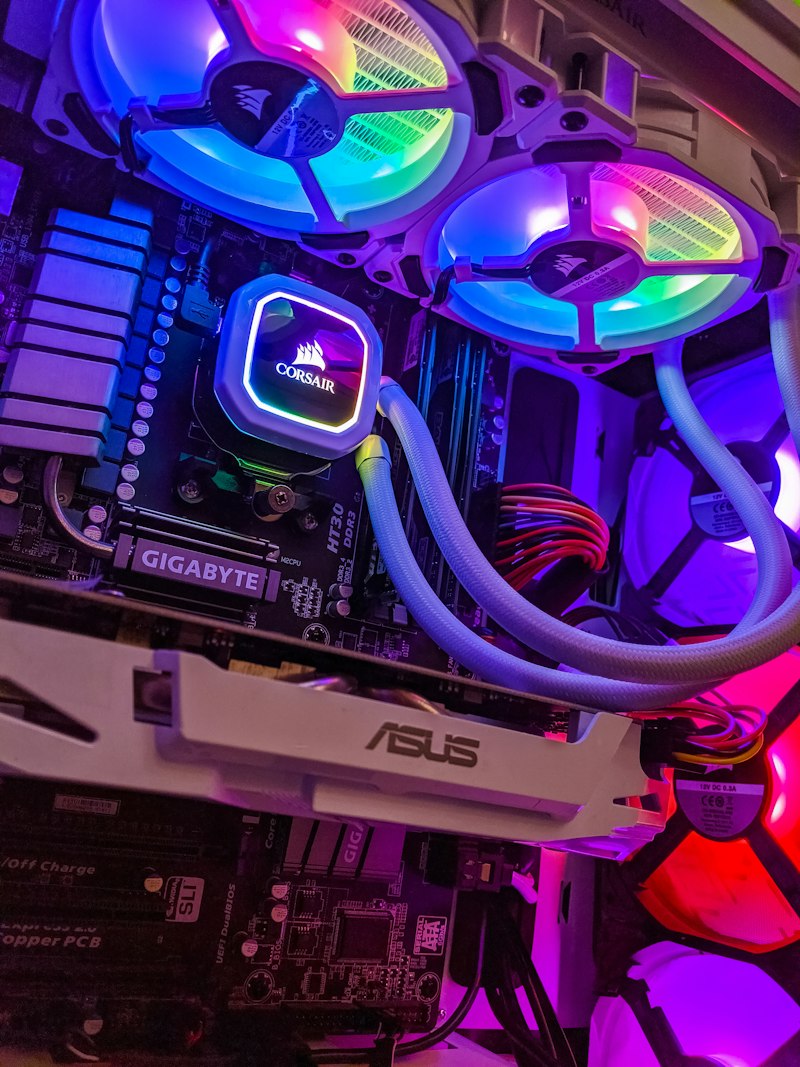
SATA data and power cables may be loose. Try different cables and ports. Common issue after moving computer.
BIOS Settings:
Ensure SATA controller is enabled. Try AHCI vs IDE mode. Check motherboard documentation for options.
Conclusion:
If BIOS doesn't see the drive, it's a cable or drive failure. If BIOS sees it but Windows doesn't, it's a software issue.