Printer Problems and Solutions
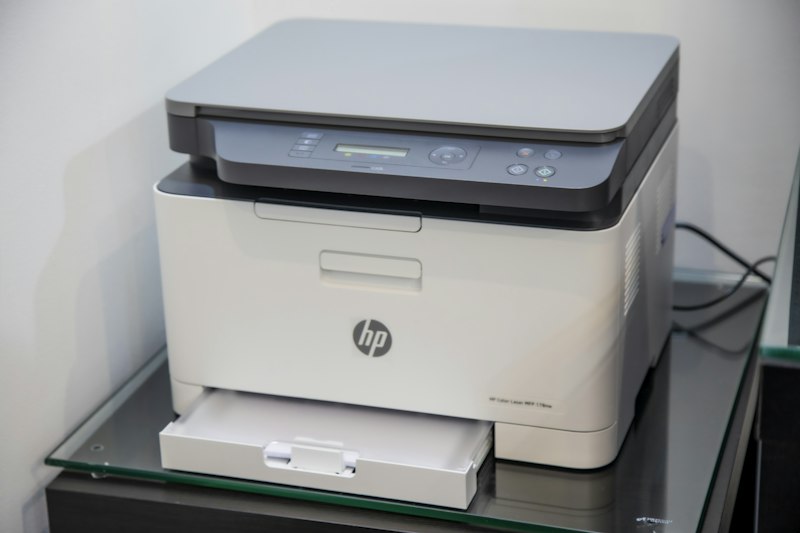
Comprehensive troubleshooting guide for common printer issues.
Check Connections:
For USB: verify cable is secure at both ends. For wireless: confirm printer is on the same network. Basic connectivity solves many issues.
Restart Print Spooler:
Press Win+R, type services.msc. Find Print Spooler, right-click and Restart. Clears stuck print jobs.
Clear Print Queue:
Settings > Printers & scanners > select printer > Open queue. Cancel all documents. Stuck jobs prevent new printing.
Remove and Re-add Printer:
Settings > Printers & scanners > remove the printer. Add it again. Fresh installation resolves configuration issues.
Update Printer Drivers:
Download latest drivers from manufacturer website. Old drivers cause compatibility issues with new Windows versions.
Set as Default Printer:
Right-click printer > Set as default. Windows sometimes prints to wrong device. Verify correct selection before printing.
Conclusion:
Print Spooler issues are extremely common. Re-adding the printer with fresh drivers resolves most persistent problems.