Microphone Not Working - Fix Guide
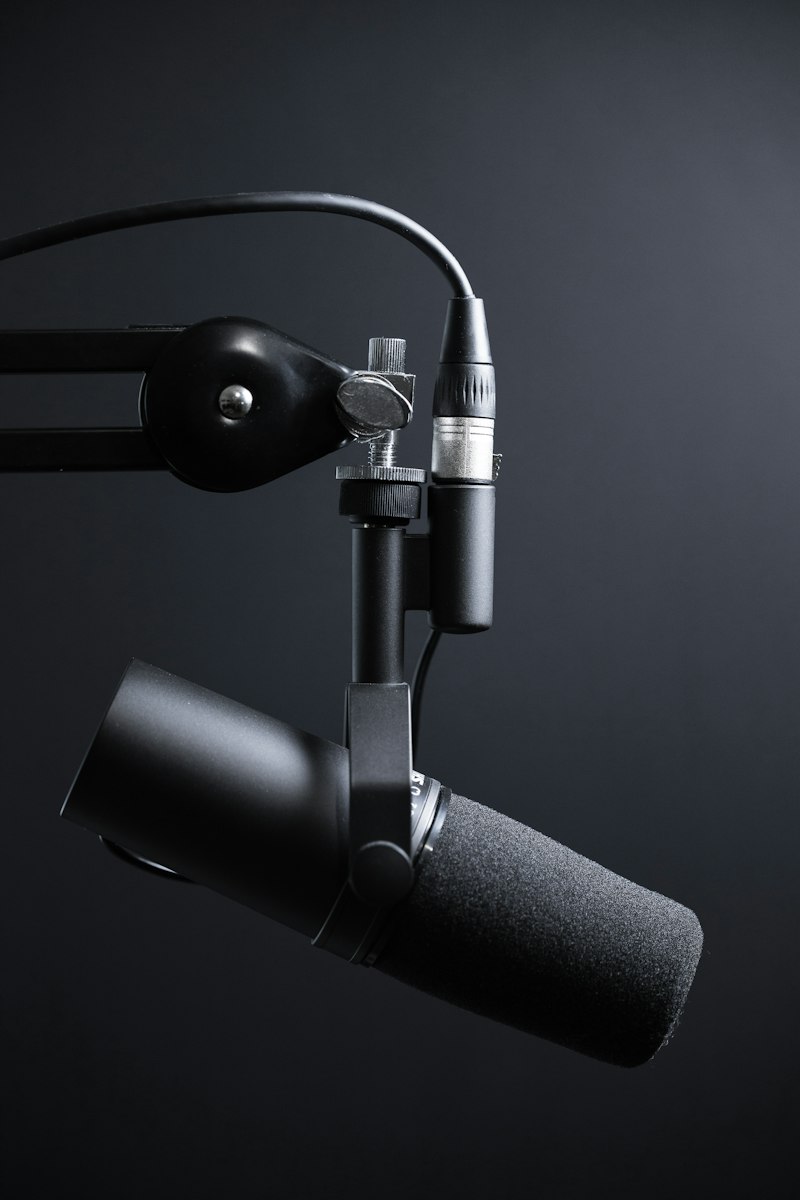
Troubleshoot and fix microphone issues on Windows computers.
Check Privacy Permissions:
Settings > Privacy > Microphone. Ensure microphone access is enabled. Check that the specific app has permission.
Select Correct Input Device:
Settings > Sound > Input. Choose the correct microphone. Many systems have multiple input options that cause confusion.
Adjust Input Volume:
In Sound settings, check input volume isn't too low. Test microphone and watch the input level indicator.
Update Audio Driver:
Device Manager > Audio inputs and outputs > Update driver. Or uninstall and restart for automatic reinstallation.
Run Audio Troubleshooter:
Settings > Troubleshoot > Recording Audio. Windows attempts automatic diagnosis and repair.
Check Physical Connection:
For external mics: try different USB port. Test microphone on another device. Verify cable isn't damaged.
Conclusion:
Privacy permissions are the most common issue. Selecting wrong input device is frequently overlooked. Most problems are software-related.