Keyboard Not Working - Solutions
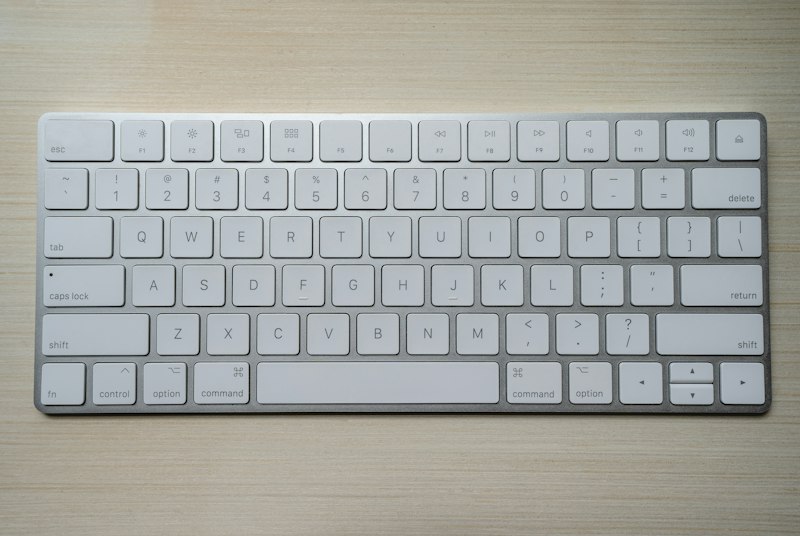
Fix keyboard issues from complete failure to specific keys not responding.
For Wired Keyboards:
Try different USB port. Test keyboard on another computer. Check for visible cable damage.
For Wireless Keyboards:
Replace batteries even if "new." Re-connect the USB receiver. Check receiver isn't blocked by metal objects.
Clean the Keyboard:
Dust and debris cause keys to stick. Turn keyboard upside down and shake. Use compressed air between keys.
Check Filter Keys:
Settings > Accessibility > Keyboard. Disable Filter Keys and Sticky Keys. These can cause unexpected behavior.
Update Keyboard Driver:
Device Manager > Keyboards > Update driver. Or uninstall and restart for fresh installation.
Try On-Screen Keyboard:
Search for "On-Screen Keyboard" as temporary solution. Helps navigate while troubleshooting physical keyboard.
Conclusion:
Batteries and cleaning resolve most issues. If specific keys don't work after cleaning, the keyboard may need replacement.